NETWORKSTIP Networking CCNA,Centos,Ubuntu,Sql,

Made By Muhammad Nafees

Breaking

Showing posts with label Mikrotik. Show all posts

Thursday, 3 October 2019

October 03, 2019

Mikrotik enable web proxy and block site and file & redirect link

Mikrotik enable web proxy and block site and file & redirect link

  • Go to IP Firewall
  • Check Enable
  • Add Port 8080
 
  • Add New Destination Firewall Nat 
  • IP->Firewall->NAT
  • In dst.Port we are just blocking http port for https you can add 80,443


  •  Now Go to IP >> Web Proxy
  • Then Click on Access
  • Then add New Rule Web-Proxy 
  • Add Redirect Page 


  • You can Also block file extension by mention extension in Path Tab ".exe"
  • Now Click Apply OK  
  • Now any user want to visit playboy.com will redirect to networkstip.blogspot.com
  • Note: Redirection on webproxy only work on http site not for https
October 03, 2019

Mikrotik Queues Download limit Upload limit

Mikrotik Queues Download limit Upload limit

  •  Go to Queues


  • Now Click on add to add new queue
  • Add Queue Name
  • In Target add PC IP Note (You can also add a pool by mention subnet mask 192.168.121.0/24
  • Set Upload Limit 
  • Set Download Limit  
  • Apply and Then OK 
 
  • Check Speed Test on Target PC

Monday, 30 September 2019

September 30, 2019

how to route traffic in MikroTik Router to a specified interface

how to route traffic in MikroTik Router to a specified interface

  • There are two Method if you have 2 wan then create 2 masquerade rules in firewall for each inter face 
  • 1 Srcnat rule for wan1
  • 2 Srcnat rule for wan2

  • Then go to firewall Mangle  add new rules
  • For General Chain Prerouting
  • Advanced Select Src Address List if you created (if not create a address list
 
  •  Now Create new Route in Route list
 
  •  Now check with tracert command in cmd 

  • Now Check traffic is route from wan1 ip which is 172.16.5.143
  • Now i am  going to change route list rule and will select wan2
 
  •  Now Rule is changed check again with tracert command

Tuesday, 24 September 2019

September 24, 2019

MikroTik Installation on Vmware

MikroTik Installation on Vmware 

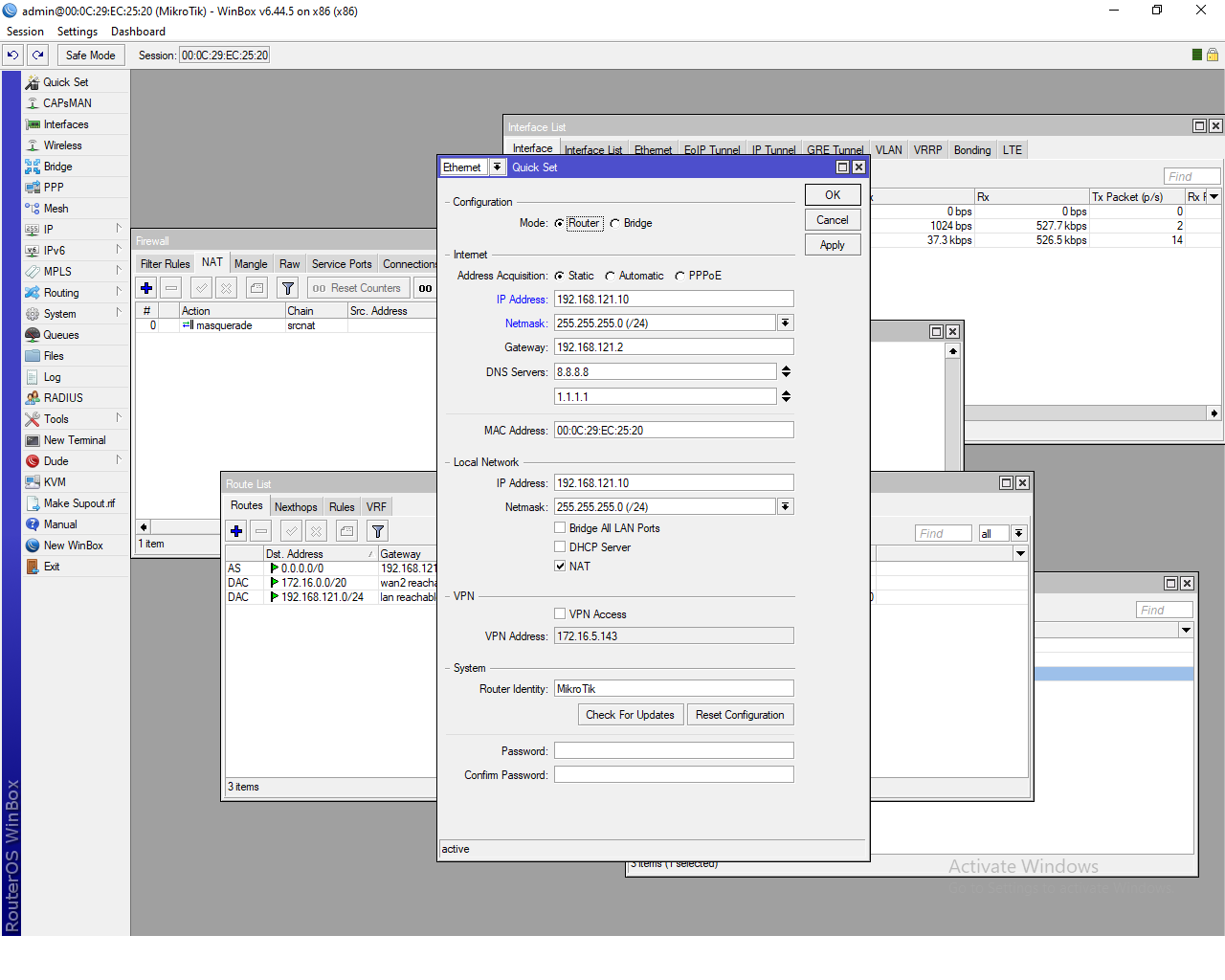
  • After Installation  just click on Quick Set then configure ips as we did Note:these or my local 
    ip for my lan side 192.168.121.10 is my Mikrotik lan ip and 192.168.121.2 vmware network adapter gateway ip you cand find this ip on vmware network adapter settings as a winserver.
     

     VMWare Machine Settings using net from Mikrotik 
    1. Machine Network Should be on Nat

    MikroTik Router Settings on Vm Machine
    1. Network Adapter 1 is on bridge settings for internet connection
    2. Network Adapter2 is on bridge settings for internet connection
    3. Network Adapter 3 in nat settings so windows machine can get connectivity from mikrotik lan
     
     Test Connectivity from Mikrotik to Vmware Adapter ping 192.168.121.2
     

    Ping is working fine from mikrotik to vmware gateway now check from windows machine.


    ping is also working fine from windows Machine .now check the internet and configure rules for vmmachine for testing .