NETWORKSTIP Networking CCNA,Centos,Ubuntu,Sql,

Made By Muhammad Nafees

Breaking

Showing posts with label IIS and FTP. Show all posts

Thursday, 5 January 2017

January 05, 2017

How to Installed Mail Enable on window Server 2012 local domain part 1


  Mail Enable Installation And Packages

  •  First Of All Installed These Packages from Add Roles and features  
    Then press again next on server selection press again next and server roles check these roles

     Then Press Next and Feature Menu Installed These packages

    Configure Active Directory

    Once the AD DS role is installed the server will need to be configured for your domain.
  • If you have not done so already, Open the Server Manager from the task bar.
  • Open the Notifications Pane by selecting the Notifications icon from the top of the Server Manager. From the notification regarding configuring AD DS, click Promote this server to a domain controller.
  •  From the Deployment Configuration tab select Add a new forest from the radial options menu. Insert your root domain name into the Root domain name field, and then click Next.

  • Select a Domain and Forest functional level, and then input a password for the Directory Services Restore Mode (DSRM) in the provided password fields. 

  • The DSRM password is used when booting the Domain Controller into recovery mode.

  •  Note: The selection made here will have lasting effects to features and server domain controller eligibility. For further information on Domain/Forest functional levels, see official Microsoft documentation.
  • Review the warning on the DNS Options tab and select Next. 
  • Confirm or enter a NetBIOS name and click Next. 
  • Specify the location of the Database, Log files, and SYSVOL folders and then click Next.
  • Review the configuration options and click Next.
  • The system checks to ensure all necessary prerequisites are installed on the system prior to moving forward. If the system passes these checks, proceed by clicking Install.
  •  Note: The server automatically reboots after the installation is complete. 
  •  After the server reboots, reconnect to it via RDP. Congratulations on successfully installing and configuring a Active Directory Domain Services on Windows Server 2012. 

Thursday, 17 March 2016

March 17, 2016

Installing and enabling IIS and FTP on Windows Server 2008 R2

Installing and enabling IIS and FTP on Windows Server 2008 R2

  • Open Server Manager, go to Roles and click “Add Roles”
  • In the Add Role Wizard, select Web Server (IIS) role to install

  • Click Next until you reach Select Role Services page, leave the default and check FTP Server, FTP Service and FTP Extensibility at the bottom. Click Next, follow the wizard and finish the role installation.
  • Now open IIS Manager from Start > Administrative Tools, expand the server, right click Sites, and click Add FTP Site, give it a site name and configure the physical path as needed.
  • Configure Binding and SSL. In our case, we’d like to bind to all unassigned IP addresses and do not use SSL.

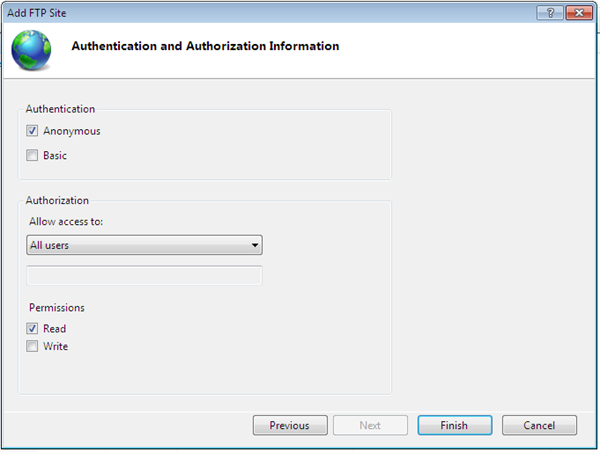
  • Enable Basic Authentication and configure authorization. In our case I’ll start with allowing All users both Read and Write permission as long as all users on the server are password protected.
  • Click Finish to finish the configuration.
March 17, 2016

How to add FTP or configure FTP site in window Server 2008 R2

How to add FTP or configure FTP site in window Server 2008 R2


Step  4
Open IIS Manager. Under connections, right click on sites and click Add FTP Site as shown in the screenshot.

Step 5
Write a name for your FTP site and select the path of folder you want to share.
Step 6
Select the default IP address and select No SSL from SSL options.
Step 7
I used these authentication settings shown in the screenshot, you can choose at will.

Click finish and you are done. You can now access this local FTP server from any other node of your local network. In my case the URL for the FTP is ftp://127.0.0.1 or use ftp://localhost or use ftp://yourpcip

Note: some time ftp show an error of authentication like wrong user name password special in when configure FTP on IP cameras for uploading snaps services in this case just follow this step


  • Allow FTP Specific User Only
After configuring FTP site click basic settings


then click connect as 

Enter user name and password then ok finally Test settings to confirm all is working fine