NETWORKSTIP Networking CCNA,Centos,Ubuntu,Sql,

Made By Muhammad Nafees

Breaking

Showing posts with label windows Server2016. Show all posts

Saturday, 16 May 2020

May 16, 2020

Hide Files inside Image or PDF files


Hide Files inside Image or PDF files
  • Some times, we have to hide some files for particular reason like classified files and we do not want it be found by others.You just need :
  • Image File or PDF File
  • Files which are going to be hidden
  • Archiver Application (WinRar, 7Zip, etc.)
  • Command Prompt
  • Now just follow this steps :
  1. Compress your files and make them as archive file. In this example, I'm going to hide my test.rar file into my PDF (readme.pdf)
  2.  Open your Command Prompt and run it As Administrator, direct to your files location, then type this command exclude quote marks : "copy /b readme.pdf + test.rar redme.pdf". Please adjust readme.pdf with your own PDFfile, test.rar with your own compressed file, and redme.pdf with your own new PDF name and this is up to you to give the name. After that, click ENTER button.
  3.  If you did it right, you will get a New PDF files with bigger file size, because the binary codes between test.rar and readme.pdf are combined into one file is redme.pdf
  4. To open your hidden files, you just open your archiver application, in this example is WinRar. Go to your PDF files and extract it. You will get new folder named redme and you will find your test folder inside it.

Thursday, 19 March 2020

March 19, 2020

Block Copy Data From RDP Server 2012 & Server 2016

Clipboard Redirection Group Policy

Server 2016 

  • Type gpedit.msc inside the elevated command prompt.
  • Navigate to Computer Configuration -> Administrative Templates -> Windows Components -> Remote Desktop Services -> Remote Desktop Session Host. 
  •  Make sure the option Do not allow Clipboard redirection is Enabled.
  •  Make sure the option Do not allow Drive redirection is Enabled.
Note According to your Environment if you are using domain then apply policy according to your situation on Targeted OU or Site or Domain 


Server 2012

  • Navigate to Computer Configuration -> Administrative Templates -> Windows Components -> Remote Desktop Services -> Remote Desktop Session Host -> Device and Resource Redirection
  • Make sure the option Do not allow Clipboard redirection is Enabled.
  •  Make sure the option Do not allow Drive redirection is Enabled.
 2nd Methond for Server 2012
  • Win+R keys to open the Run dialog box
  • Type ServerManager -> press Enter.
  • Click on the Remote Desktop Services -> select Collections.
  • Select Tasks -> choose Edit Properties.
  • Under the Client Settings tab -> make sure Clipboard and Drive is disabled. 

Windows 10

  • Type gpedit.msc inside the elevated command prompt.

  • Navigate to Computer Configuration -> Administrative Templates -> Windows Components -> Remote Desktop Services -> Remote Desktop Session Host. 
  •  Make sure the option Do not allow Clipboard redirection is Enabled.
  •  Make sure the option Do not allow Drive redirection is Enabled.


Wednesday, 8 May 2019

May 08, 2019

How to Transfer roles from DC to ADC in windows server 2012

How to Transfer roles from DC to ADC in windows server 2012
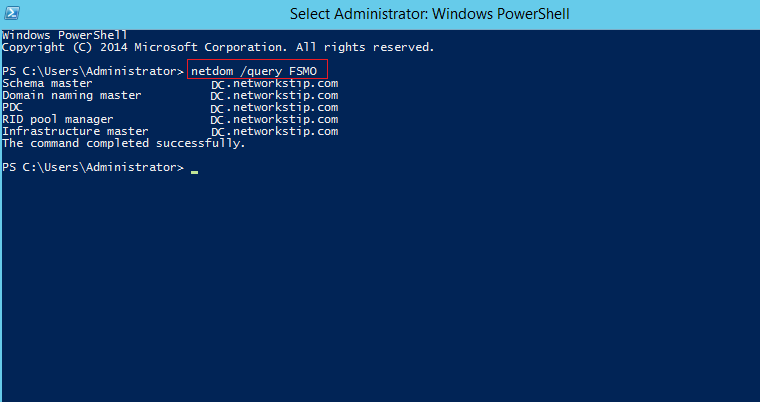
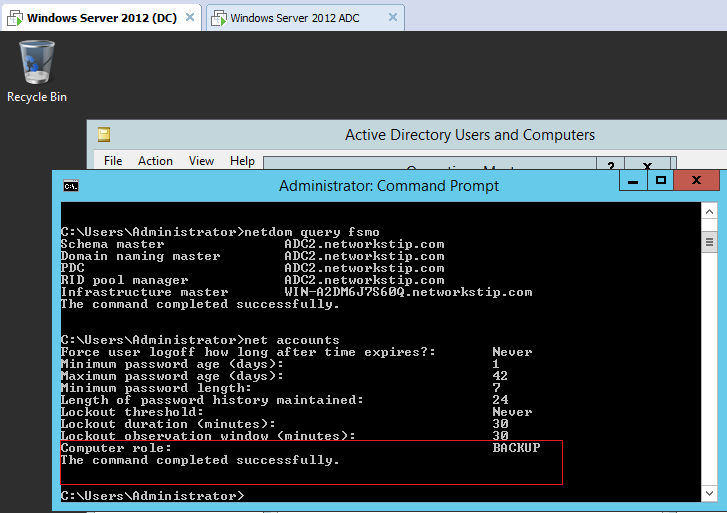
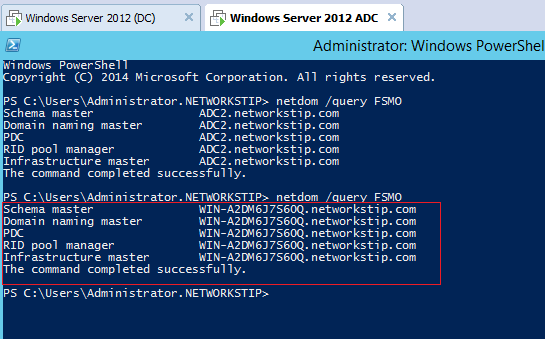
  •  open power shell type command netdom /query FSMO
  
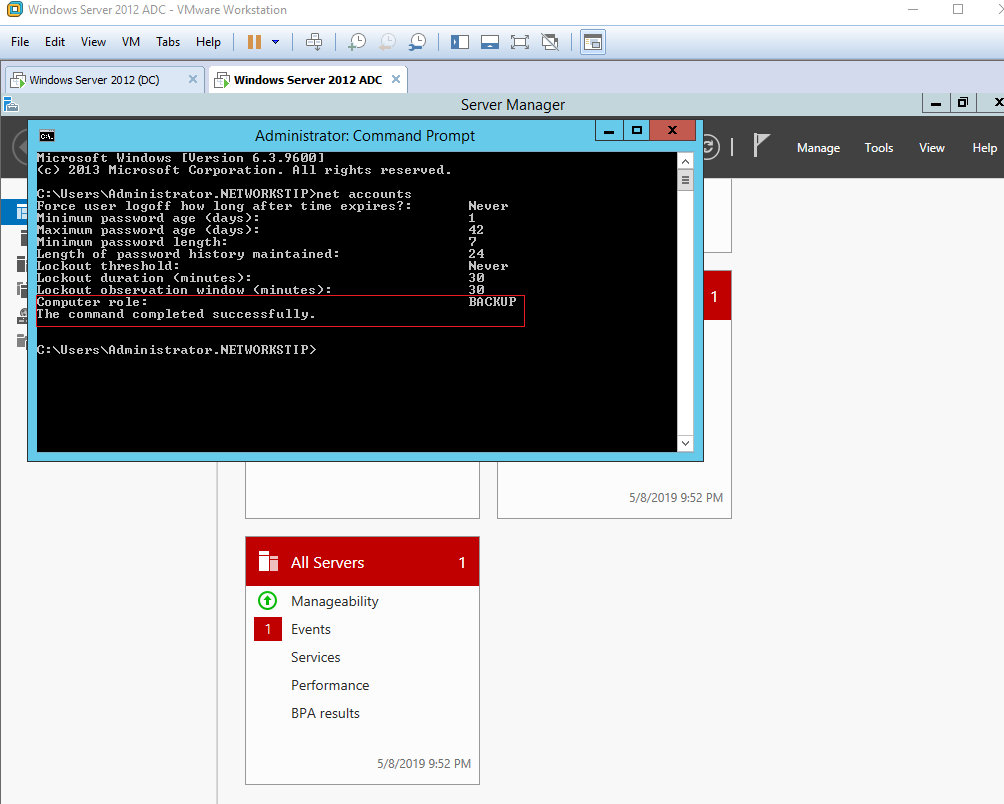
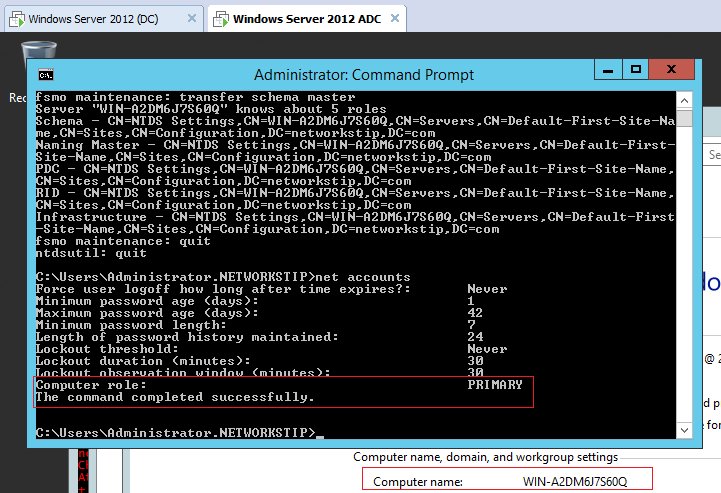
  • Open CMD type net accounts
  • Computer Role Primary  its shows this is DC


  • Now do the same on ADC
  • Computer Role Backup it shows this is ADC
  
  • Now Transfer DC FSMO Role to ADC
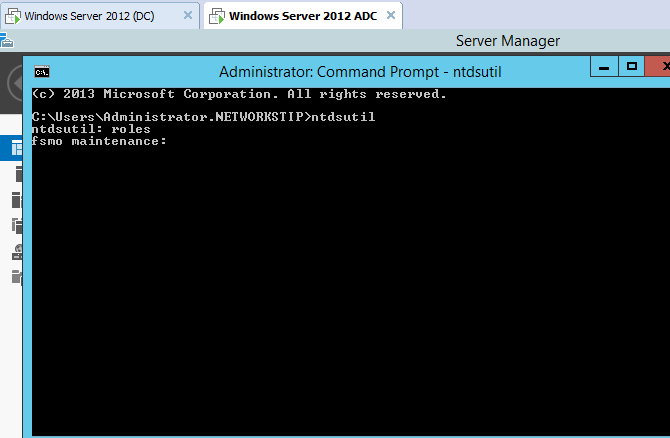
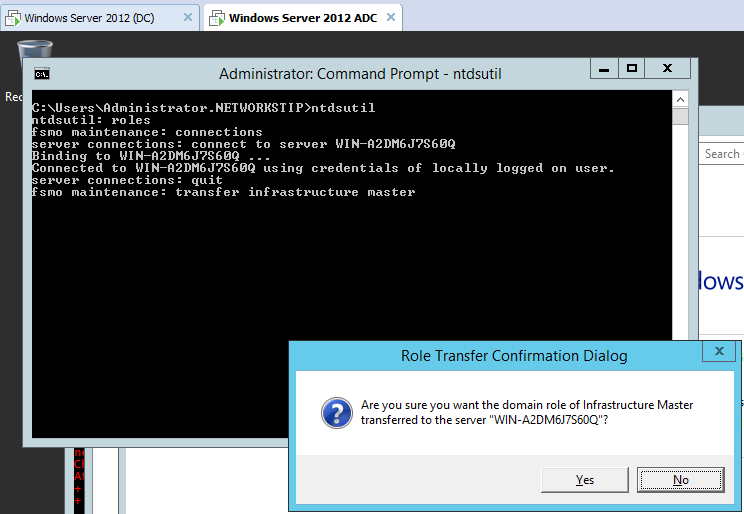
  • On ADC open cmd type ntdsutil 
  • then typ roles
  
  •  Then type connections
  • then type Connect to server server name  


  • Then type quit
  • Now we are back to Fsmo Maintecance
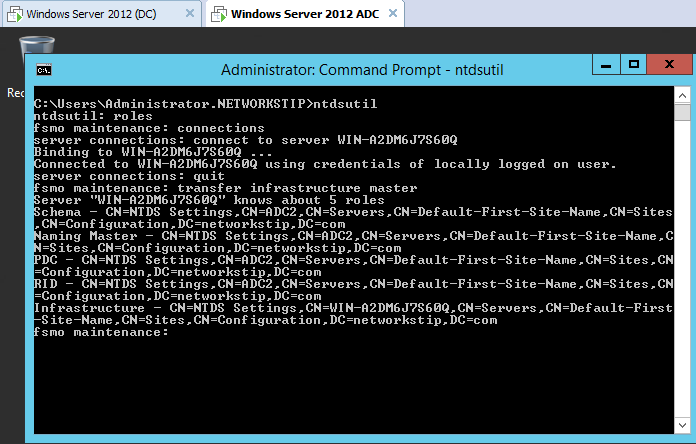
  •  Then type transfer infrastructure master
  
  •  Press Yes
  
  • Then type transfer naming master

  •  Press yes
  • Then type transfer pdc 
  • Then do the same press yes
  •  Then type transfer rid master
  •  Then type transfer scheme master
  • Finally All roles transfer quit now and check status of DC and ADC 
  
  • ADC is now Primary now check the status of DC


  • open shell type netdom /query FSMO
 

Tuesday, 7 May 2019

May 07, 2019

How to install ADC on Server 2012 and Configure Replication Active directory and dns

How to install ADC 2012 Configure Replication Active directory and DNS
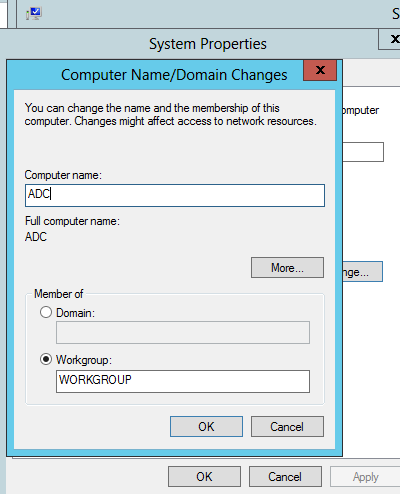
  • 1st Change the server name to ADC or any you want
 
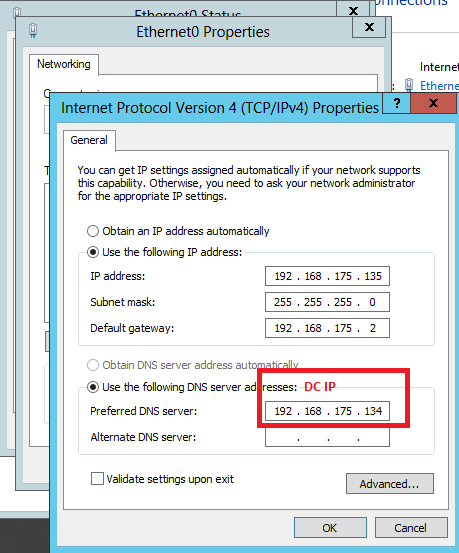
  • 2nd configure dns entry on ADC Server
  • Then ping the domain to verify connectivity between DC and ADC
 

  •  ping is working fine connectivity properly done . 
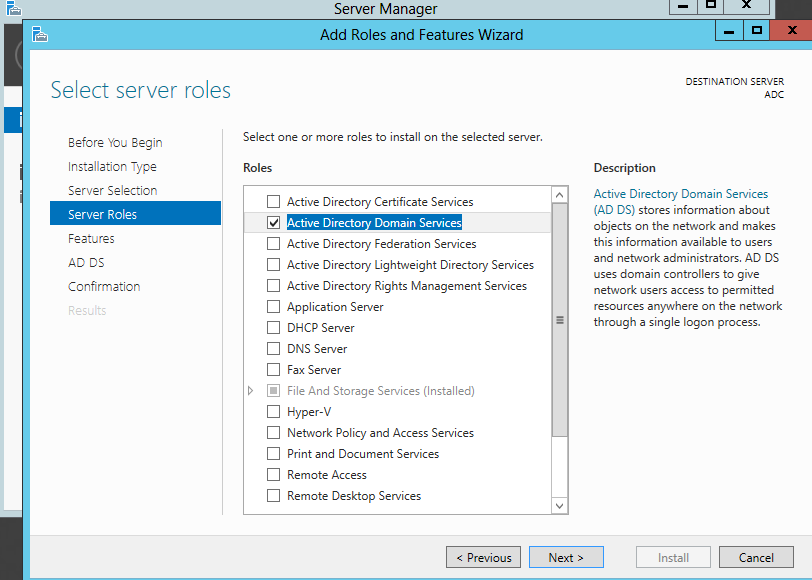
  • Then install the rule active directory 
 
  • Now configure server to existing domain as a ADC


  •  Domain Name System Prefer to be check
  • Global Catalog should be check if main DC will down then ADC will authenticate the user from ADC that's why these two Option should b check
  • DSRM password can be different from domain password but use same as domain its easy to remember
  • In 1st Option Install from Media if you have active directory and dns backup then we can import it is usually use for mass data if data is in GBs or Connectivity between servers on wan then import from Media
  • we are replicate from server in and select DC server but you can choose any from the according to your network setup Next and Finish
  • Looks All Prerequisite passed successfully press install
  •  After completion server will restart
  • Now in domain controllers DC Type 2 server show on is primery DC and 2nd is ADC
  • For further verification run this command in shell dsquery server
  • this one is before joining ADC 
  • After joining ADC showing 2 server detail
  •  Now check Replication between DC and ADC
  • Create a user on ADC
  •  Go to DC refresh once
  • Now check DNS Replication
  • just Create A record manually on a DC
  • Now go to ADC DNS Manger and refresh 
  • Now Check Replication on Group Policy 
  • Open Group Policy Management on ADC and create a policy
  • Now GPolicy replicated on DC

Wednesday, 24 April 2019

April 24, 2019

Install software from domian on client PC via GPO

Install software on domian and client PC via GPO
  • 1s Go To  Active directory users & Computer
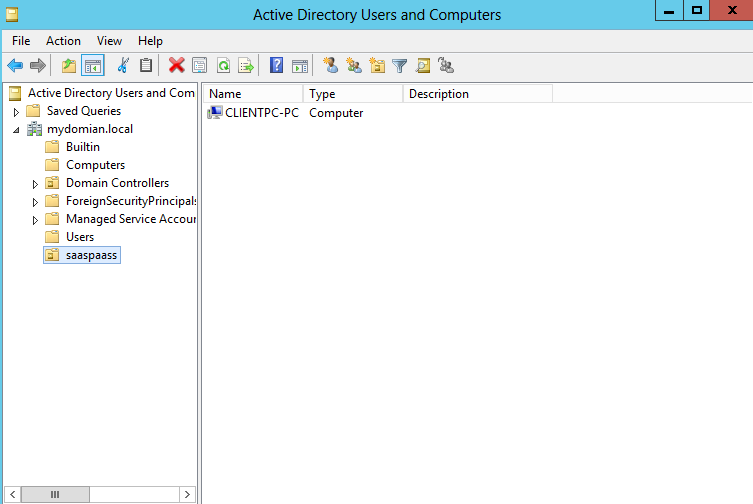
  • Create New organization Group for computers which you want to install software
 

  • Now Move PC to this Unit
  • If you want to deploy  on users then create user and move user to this Unit
 
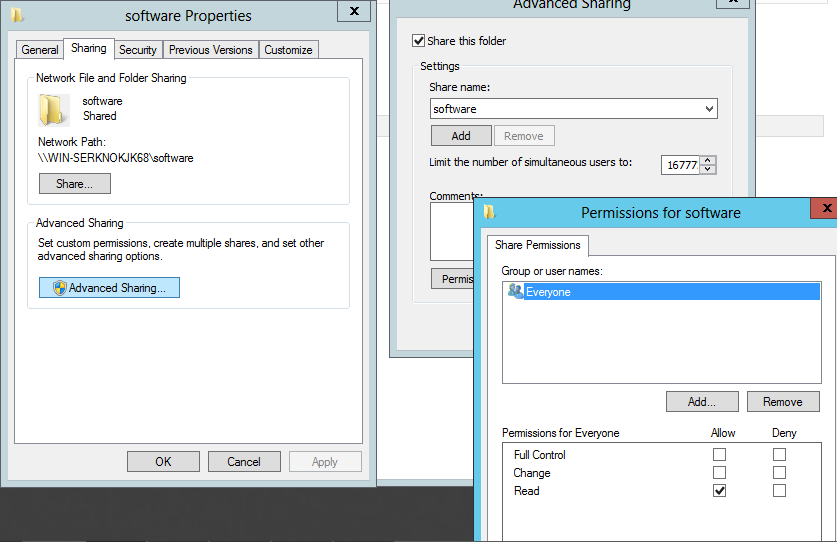
  • Now create a folder on server and share it to every one and make sure it is access able to every one
 
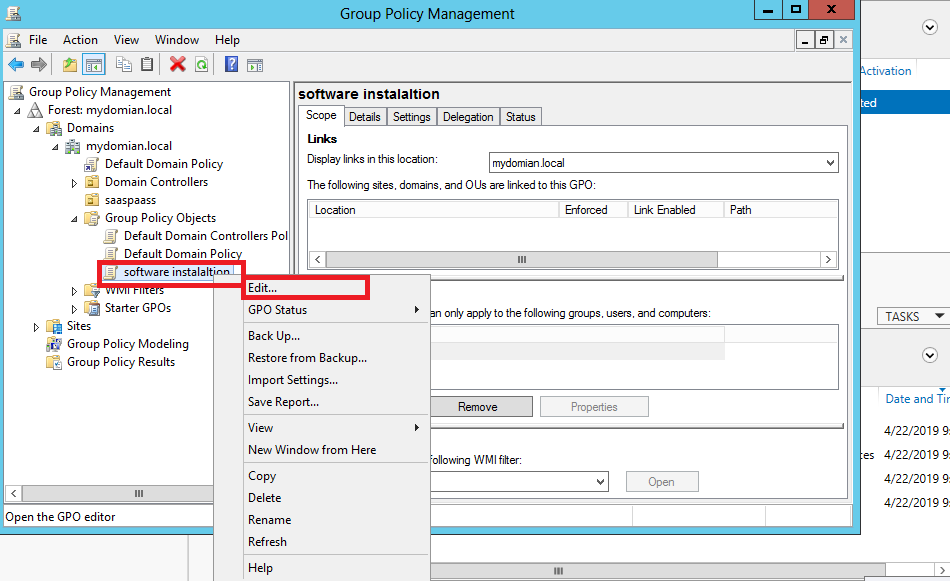
  • Now Go To Group Policy expend Domain click on Group Policy Object


  •  Create new Policy
  • Then edit Policy 
 
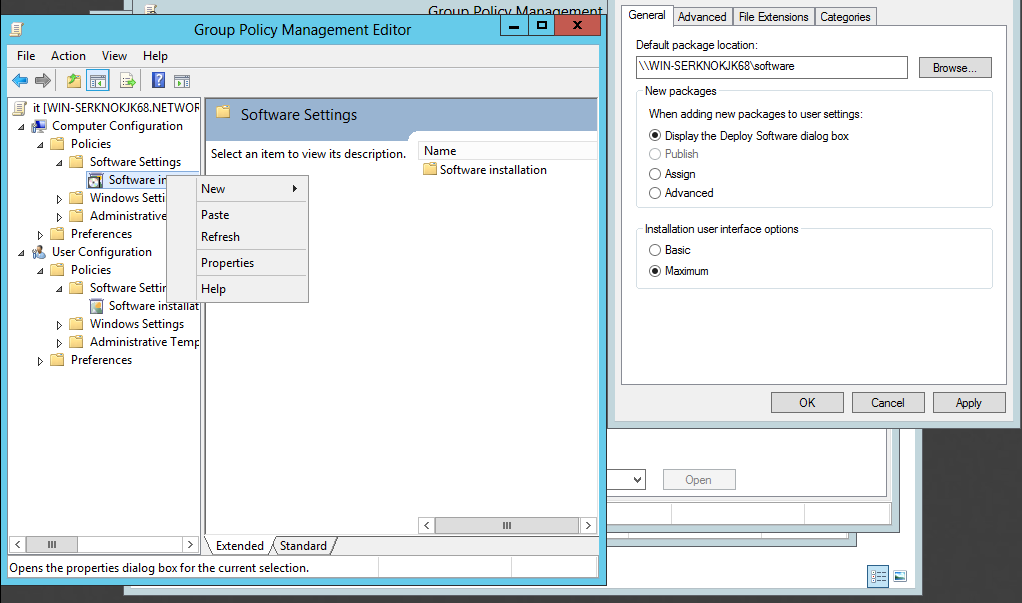
  • Now Right Click on Software Installation and Go To Properties
  • Now paste the share folder link in to the path and in package settings check Assign
 
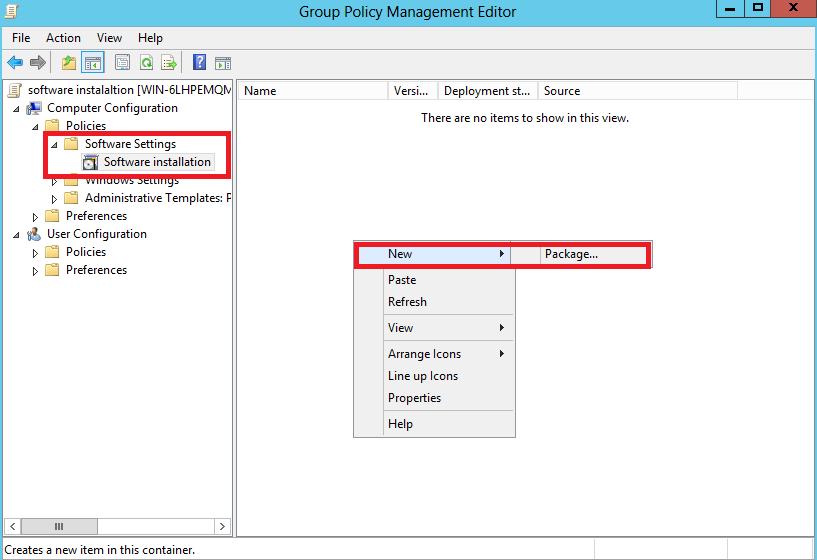
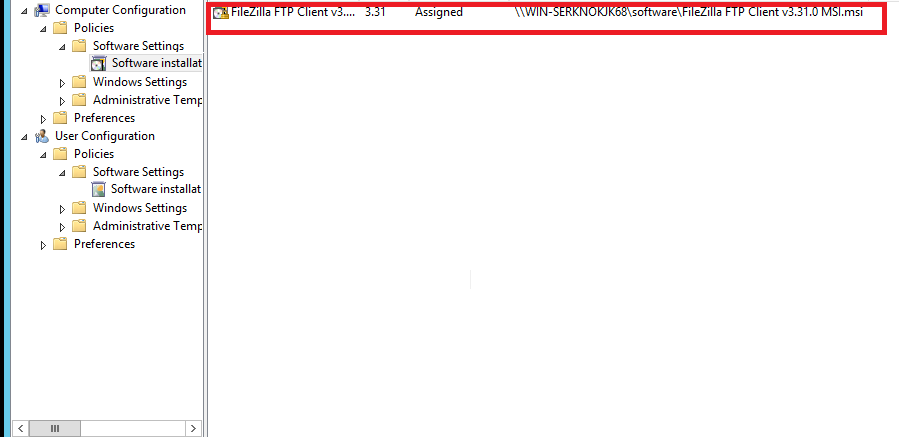
  • Now Go TO Computer Policy and select the software installation Packege


  • After selecting package popup message will appear click on assign 

  •  Back to Group Policy link OU to Group Policy in which you just add PC

  • Select the policy from list 
  • Open CMD on server type gpupdate /forece
  • Then Goto Client Machine
  • Open CMD type gpupdate /force

  • Press Y PC will Restart 
 
  • if application didnt install check firewall settings disable firewall and try again