NETWORKSTIP Networking CCNA,Centos,Ubuntu,Sql,

Made By Muhammad Nafees

Breaking

Saturday, 16 May 2020

May 16, 2020

Hide Files inside Image or PDF files


Hide Files inside Image or PDF files
  • Some times, we have to hide some files for particular reason like classified files and we do not want it be found by others.You just need :
  • Image File or PDF File
  • Files which are going to be hidden
  • Archiver Application (WinRar, 7Zip, etc.)
  • Command Prompt
  • Now just follow this steps :
  1. Compress your files and make them as archive file. In this example, I'm going to hide my test.rar file into my PDF (readme.pdf)
  2.  Open your Command Prompt and run it As Administrator, direct to your files location, then type this command exclude quote marks : "copy /b readme.pdf + test.rar redme.pdf". Please adjust readme.pdf with your own PDFfile, test.rar with your own compressed file, and redme.pdf with your own new PDF name and this is up to you to give the name. After that, click ENTER button.
  3.  If you did it right, you will get a New PDF files with bigger file size, because the binary codes between test.rar and readme.pdf are combined into one file is redme.pdf
  4. To open your hidden files, you just open your archiver application, in this example is WinRar. Go to your PDF files and extract it. You will get new folder named redme and you will find your test folder inside it.

Thursday, 19 March 2020

March 19, 2020

Block Copy Data From RDP Server 2012 & Server 2016

Clipboard Redirection Group Policy

Server 2016 

  • Type gpedit.msc inside the elevated command prompt.

  • Navigate to Computer Configuration -> Administrative Templates -> Windows Components -> Remote Desktop Services -> Remote Desktop Session Host. 
  •  Make sure the option Do not allow Clipboard redirection is Enabled.
  •  Make sure the option Do not allow Drive redirection is Enabled.
Note According to your Environment if you are using domain then apply policy according to your situation on Targeted OU or Site or Domain 


Server 2012

  • Navigate to Computer Configuration -> Administrative Templates -> Windows Components -> Remote Desktop Services -> Remote Desktop Session Host -> Device and Resource Redirection
  • Make sure the option Do not allow Clipboard redirection is Enabled.
  •  Make sure the option Do not allow Drive redirection is Enabled.
 2nd Methond for Server 2012
  • Win+R keys to open the Run dialog box
  • Type ServerManager -> press Enter.
  • Click on the Remote Desktop Services -> select Collections.
  • Select Tasks -> choose Edit Properties.
  • Under the Client Settings tab -> make sure Clipboard and Drive is disabled. 

Windows 10

  • Type gpedit.msc inside the elevated command prompt.

  • Navigate to Computer Configuration -> Administrative Templates -> Windows Components -> Remote Desktop Services -> Remote Desktop Session Host. 
  •  Make sure the option Do not allow Clipboard redirection is Enabled.
  •  Make sure the option Do not allow Drive redirection is Enabled.


Tuesday, 19 November 2019

November 19, 2019

Pfsense Traffic Route to specified interface

Pfsense Traffic Route to specified  Interface

  •  1st Go To Firewall >> aliases 
  • Create Aliases list of host


  •  Click On save Aliases is create with name comsat


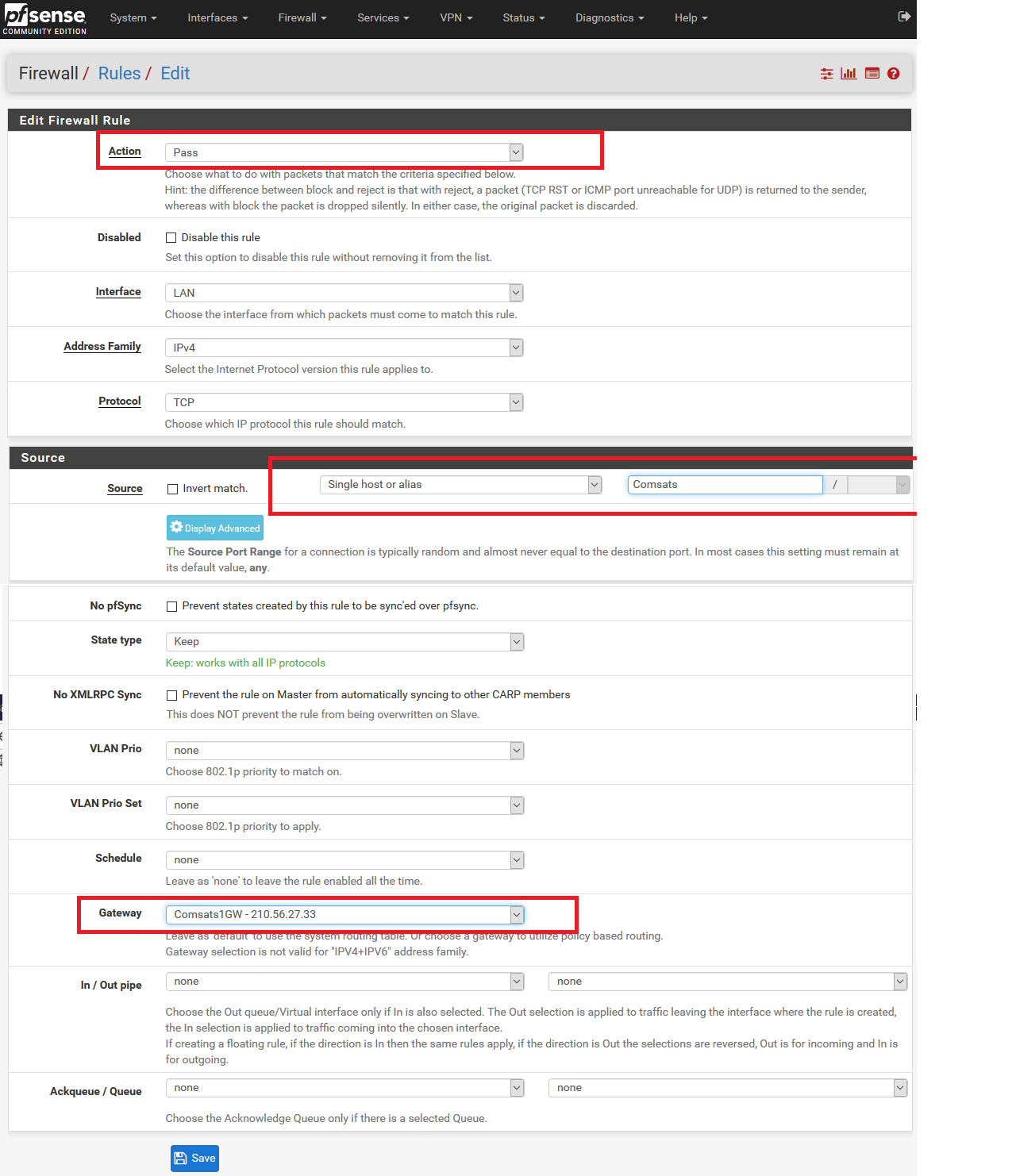
Now Create a Rule For Traffic Route 

  • Go To firewall >>Rules
  • Now Click On lan >> Then click on add button add New Rules
 
  • Now Check traffic will route from specified interface
November 19, 2019

Pfsene Virtual IP and IP Mapping Multiple Wan Static IP

Pfsene Virtual IP and IP Mapping Multiple Wan Statiac IP

  • 1st Go To Firewall and click on Virtual IP 
  • Then add static ip of wan


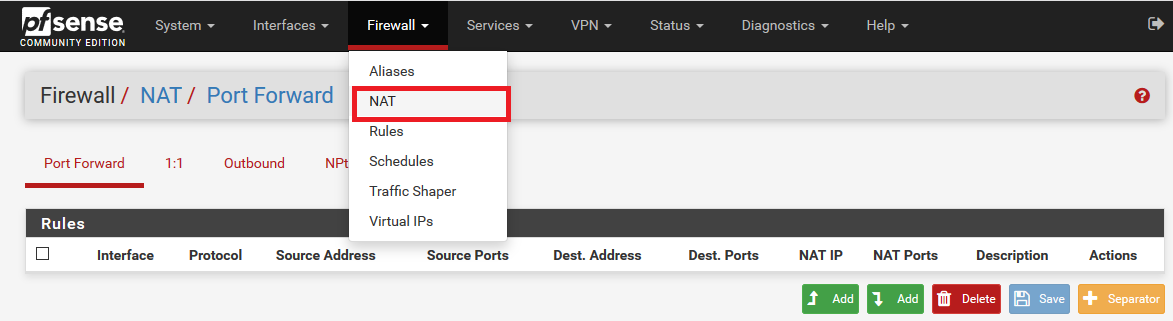
  • Now Go To  Firewall then >>Nat


  •  Now Click on 1:1 To create a nat rule to route virtual IP traffic to your local host.


  •  Remaining Settings should be same as i set.
  • Now Rule Will look like this


Thursday, 3 October 2019

October 03, 2019

Mikrotik enable web proxy and block site and file & redirect link

Mikrotik enable web proxy and block site and file & redirect link

  • Go to IP Firewall
  • Check Enable
  • Add Port 8080
 
  • Add New Destination Firewall Nat 
  • IP->Firewall->NAT
  • In dst.Port we are just blocking http port for https you can add 80,443


  •  Now Go to IP >> Web Proxy
  • Then Click on Access
  • Then add New Rule Web-Proxy 
  • Add Redirect Page 


  • You can Also block file extension by mention extension in Path Tab ".exe"
  • Now Click Apply OK  
  • Now any user want to visit playboy.com will redirect to networkstip.blogspot.com
  • Note: Redirection on webproxy only work on http site not for https
October 03, 2019

Mikrotik Queues Download limit Upload limit

Mikrotik Queues Download limit Upload limit

  •  Go to Queues


  • Now Click on add to add new queue
  • Add Queue Name
  • In Target add PC IP Note (You can also add a pool by mention subnet mask 192.168.121.0/24
  • Set Upload Limit 
  • Set Download Limit  
  • Apply and Then OK 
 
  • Check Speed Test on Target PC

Monday, 30 September 2019

September 30, 2019

how to route traffic in MikroTik Router to a specified interface

how to route traffic in MikroTik Router to a specified interface

  • There are two Method if you have 2 wan then create 2 masquerade rules in firewall for each inter face 
  • 1 Srcnat rule for wan1
  • 2 Srcnat rule for wan2

  • Then go to firewall Mangle  add new rules
  • For General Chain Prerouting
  • Advanced Select Src Address List if you created (if not create a address list
 
  •  Now Create new Route in Route list
 
  •  Now check with tracert command in cmd 

  • Now Check traffic is route from wan1 ip which is 172.16.5.143
  • Now i am  going to change route list rule and will select wan2
 
  •  Now Rule is changed check again with tracert command

Tuesday, 24 September 2019

September 24, 2019

MikroTik Installation on Vmware

MikroTik Installation on Vmware 

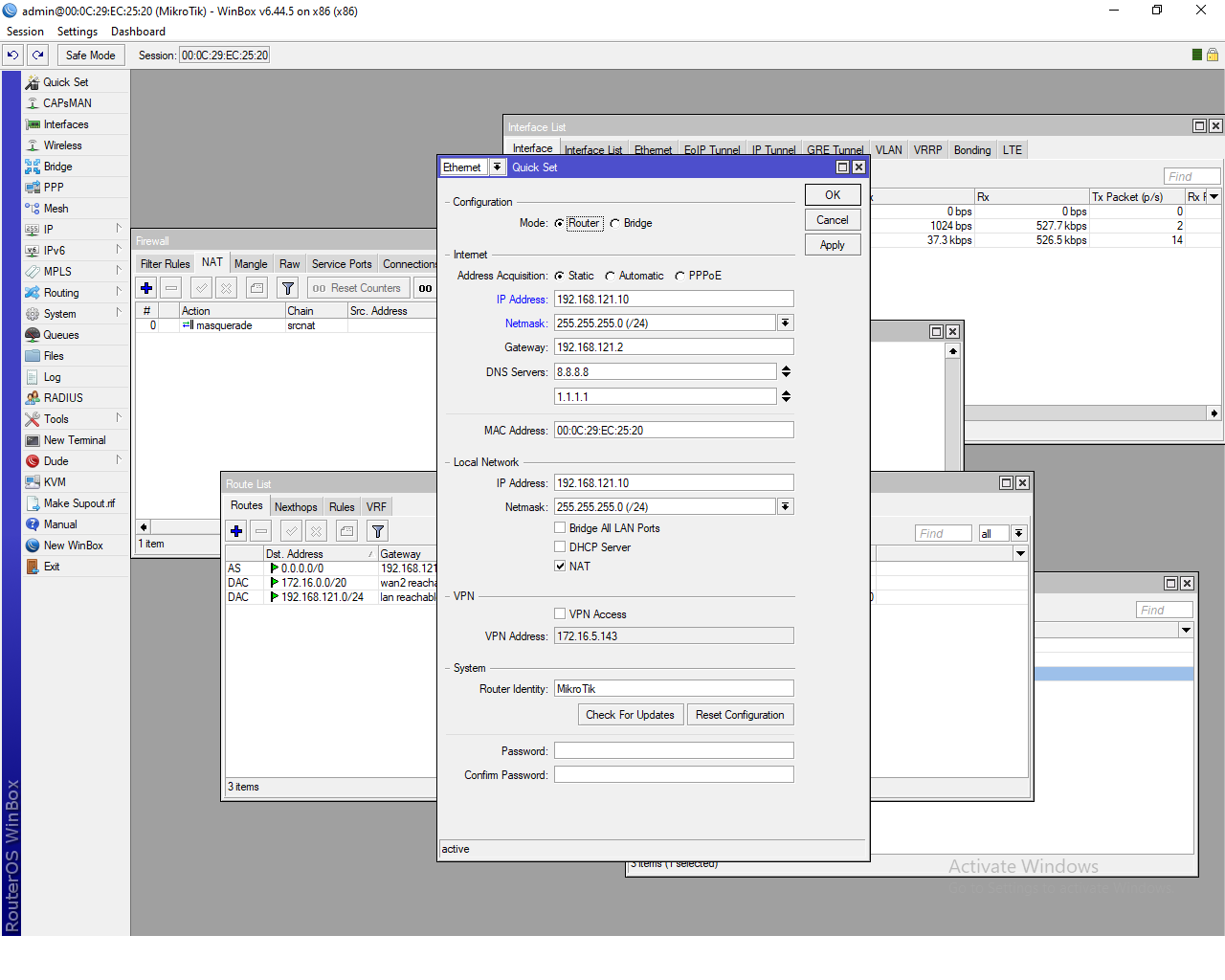
  • After Installation  just click on Quick Set then configure ips as we did Note:these or my local 
    ip for my lan side 192.168.121.10 is my Mikrotik lan ip and 192.168.121.2 vmware network adapter gateway ip you cand find this ip on vmware network adapter settings as a winserver.
     

     VMWare Machine Settings using net from Mikrotik 
    1. Machine Network Should be on Nat

    MikroTik Router Settings on Vm Machine
    1. Network Adapter 1 is on bridge settings for internet connection
    2. Network Adapter2 is on bridge settings for internet connection
    3. Network Adapter 3 in nat settings so windows machine can get connectivity from mikrotik lan
     
     Test Connectivity from Mikrotik to Vmware Adapter ping 192.168.121.2
     

    Ping is working fine from mikrotik to vmware gateway now check from windows machine.


    ping is also working fine from windows Machine .now check the internet and configure rules for vmmachine for testing .